> ## Documentation Index
> Fetch the complete documentation index at: https://v1.docs.meetsquad.ai/llms.txt
> Use this file to discover all available pages before exploring further.
# Knowledge
> Manage the context and data that powers your AI product agent
## Overview
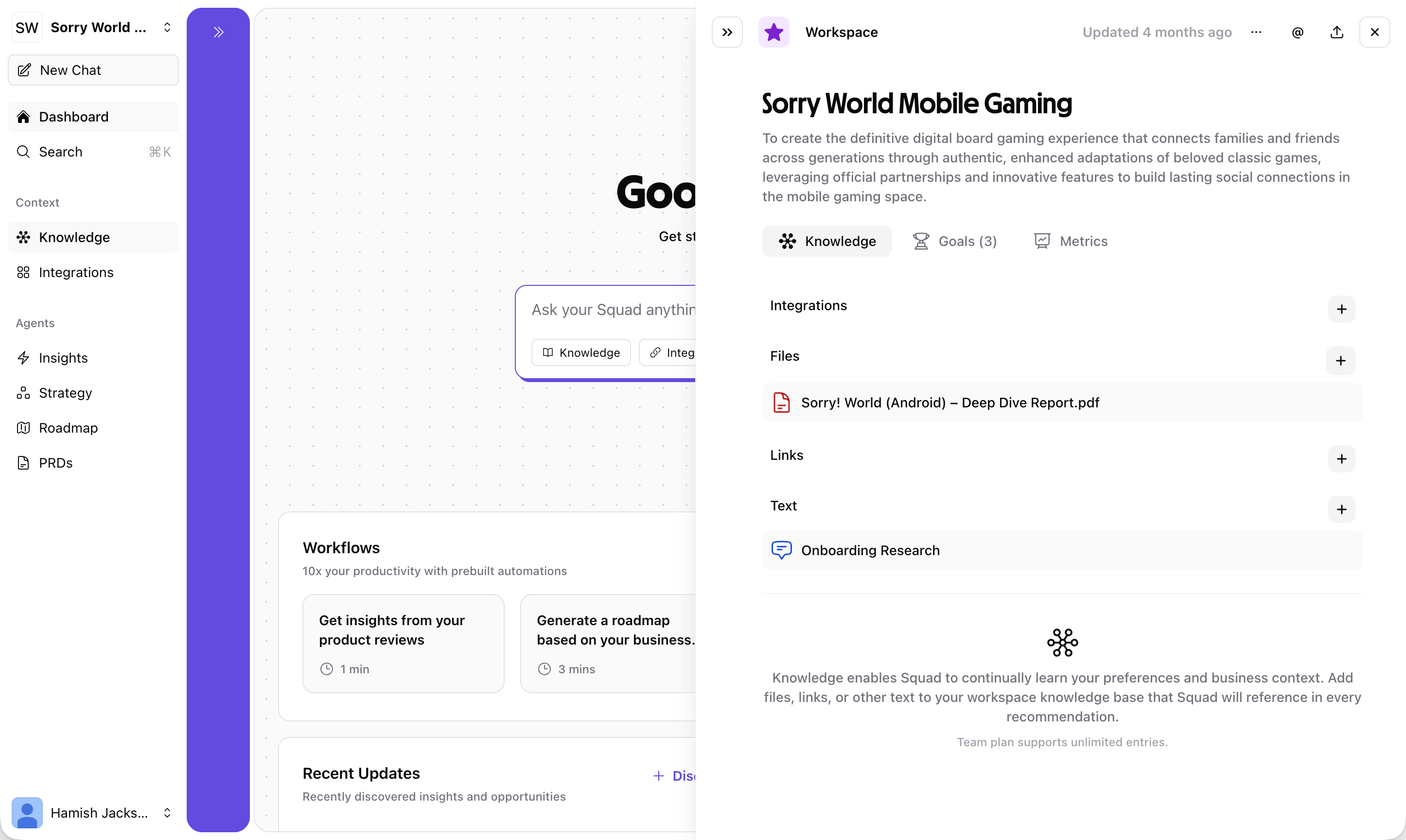
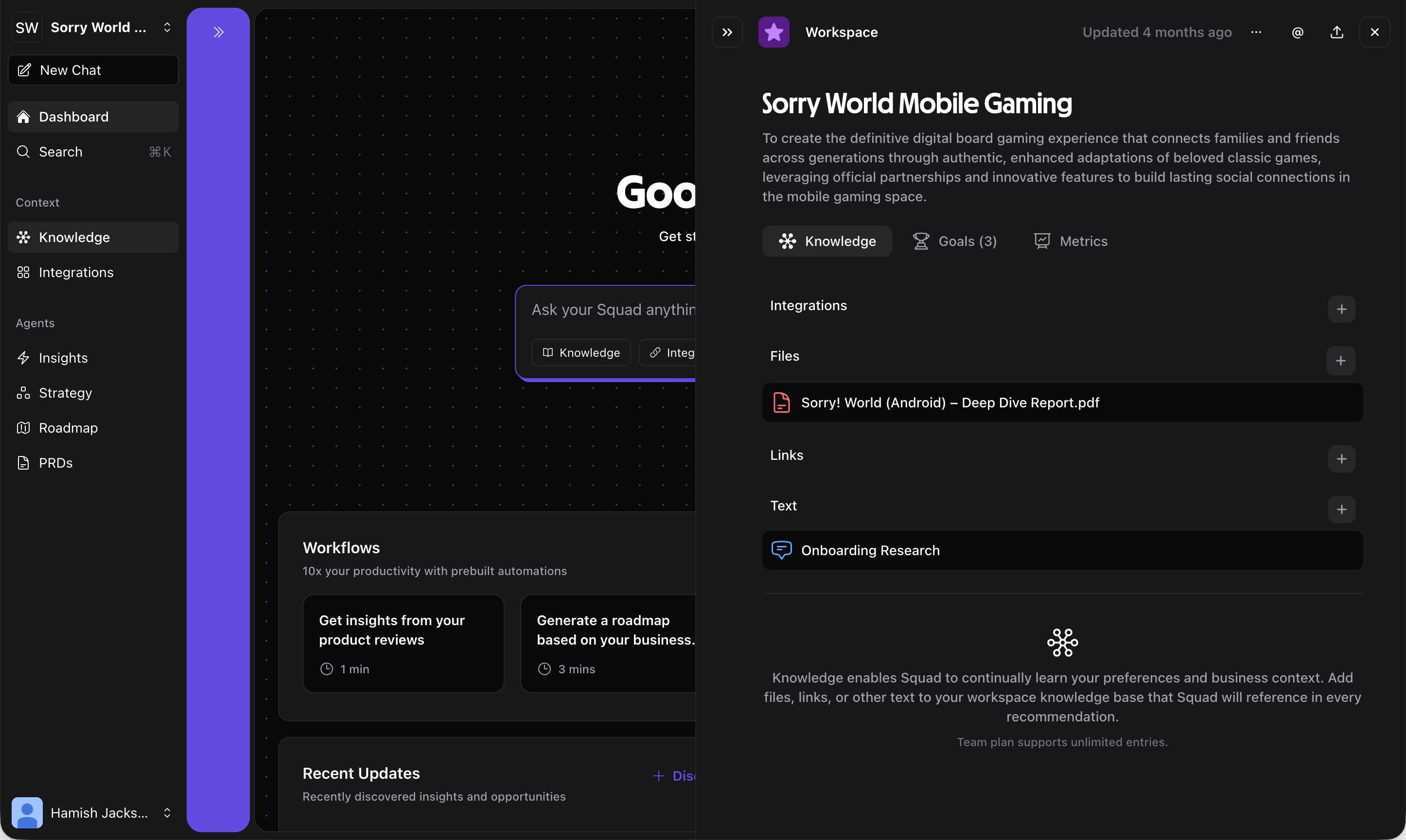 Knowledge is a core part of Squad that controls the context your AI product agent uses to generate insights, strategies, and recommendations. The more relevant knowledge you provide, the more accurate and tailored Squad's outputs become.
Knowledge is accessible from the sidebar under **Context → Knowledge** and is used across all Squad features including Chat, Insights, Strategy, and Roadmap.
## Knowledge panel
The Knowledge panel has three tabs:
Manage the information Squad uses for context. Knowledge is organized into four categories:
* **Integrations** — Data automatically synced from connected tools (Notion, app stores, analytics platforms, etc.)
* **Files** — Upload documents like pitch decks, research reports, or spreadsheets
* **Links** — Add URLs to websites, articles, or online resources for Squad to reference
* **Text** — Add free-form text notes, business context, or product descriptions
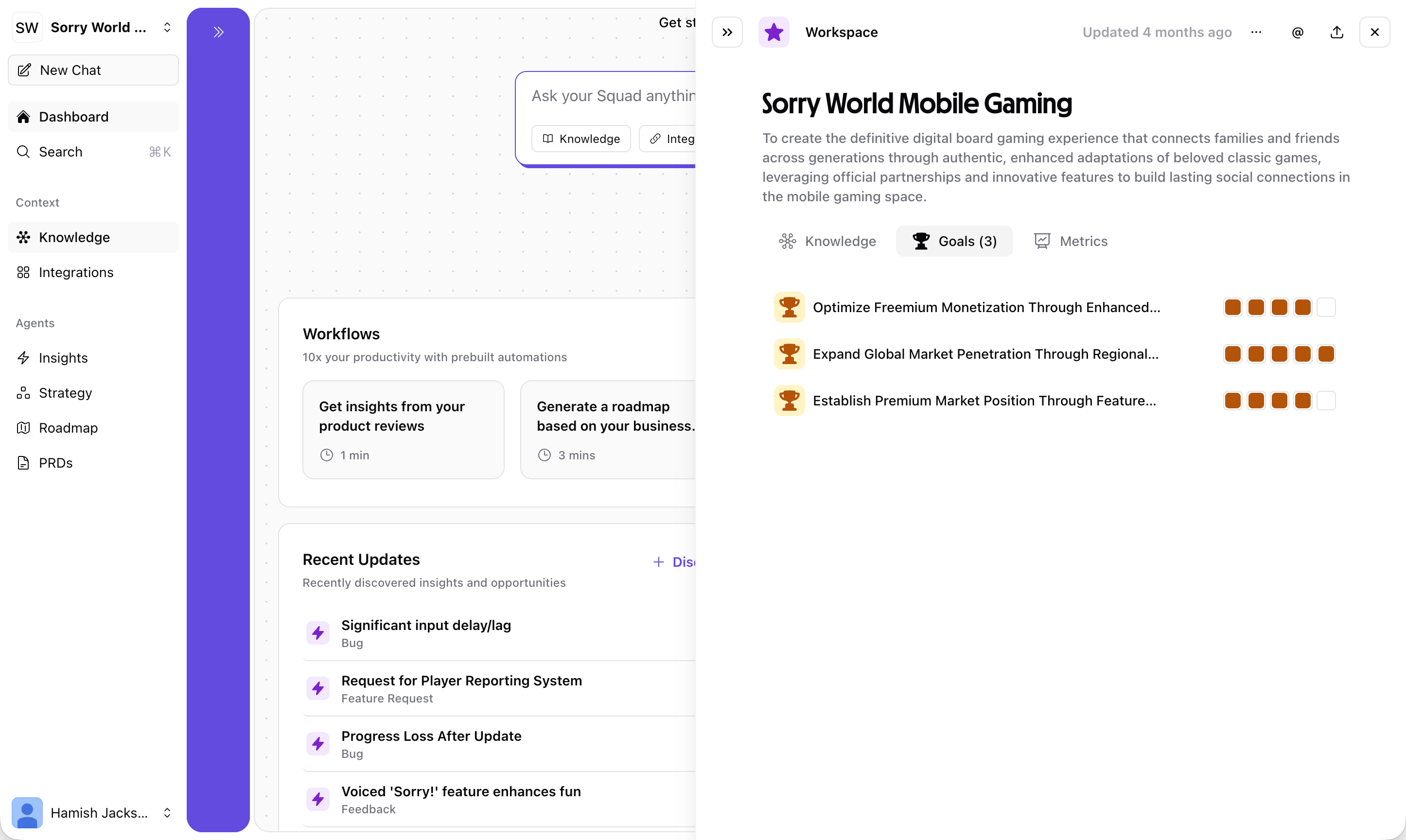
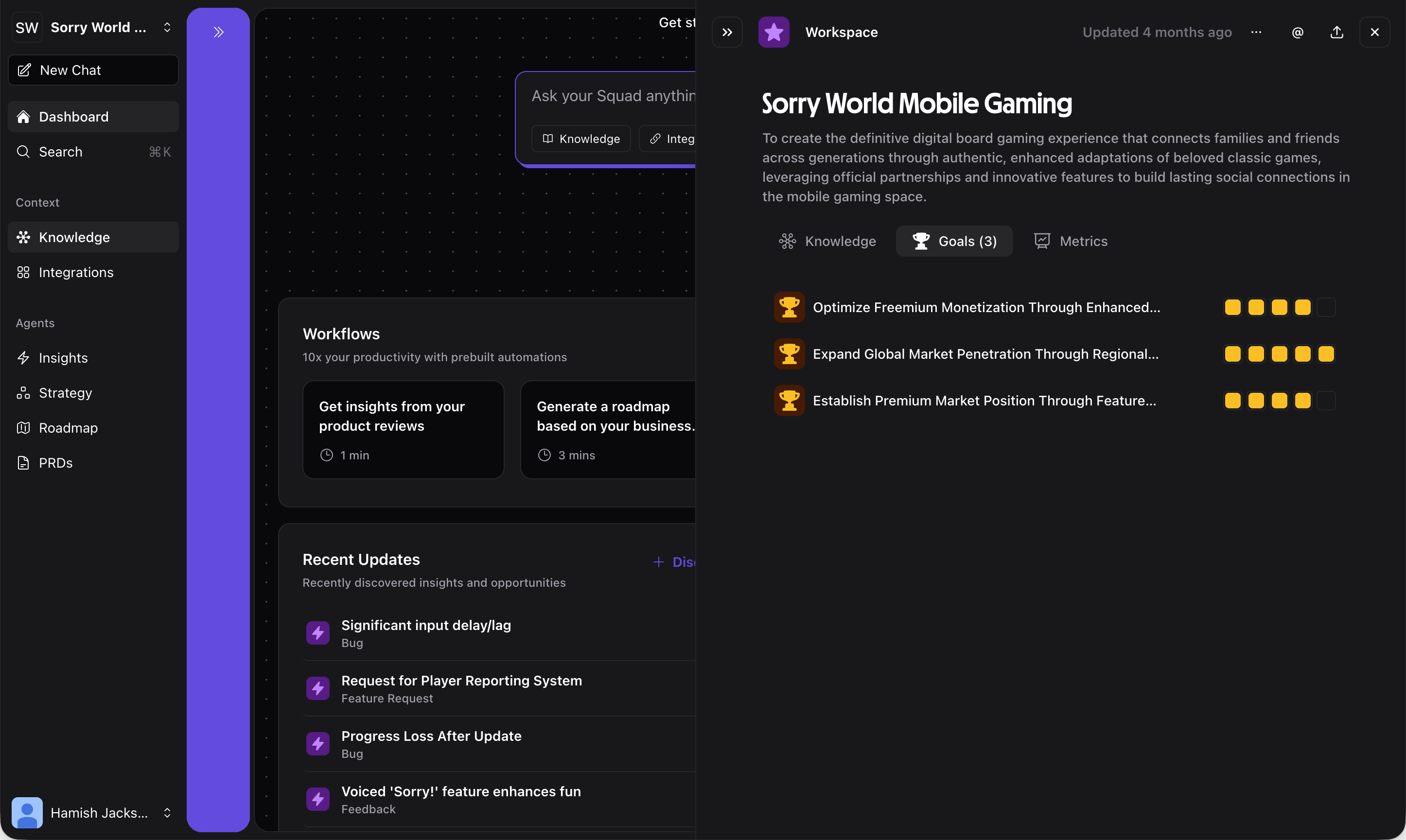
View and manage your strategic goals. Goals set here feed into the Strategy Map and help Squad prioritize opportunities and solutions that align with your objectives.
Knowledge is a core part of Squad that controls the context your AI product agent uses to generate insights, strategies, and recommendations. The more relevant knowledge you provide, the more accurate and tailored Squad's outputs become.
Knowledge is accessible from the sidebar under **Context → Knowledge** and is used across all Squad features including Chat, Insights, Strategy, and Roadmap.
## Knowledge panel
The Knowledge panel has three tabs:
Manage the information Squad uses for context. Knowledge is organized into four categories:
* **Integrations** — Data automatically synced from connected tools (Notion, app stores, analytics platforms, etc.)
* **Files** — Upload documents like pitch decks, research reports, or spreadsheets
* **Links** — Add URLs to websites, articles, or online resources for Squad to reference
* **Text** — Add free-form text notes, business context, or product descriptions
View and manage your strategic goals. Goals set here feed into the Strategy Map and help Squad prioritize opportunities and solutions that align with your objectives.
 Track key metrics associated with your goals. Add measurable targets and monitor progress over time.
## Adding knowledge
### From integrations
Connect tools like [Notion](/integrations/notion), app stores, or analytics platforms to automatically sync relevant data into your knowledge base. Navigate to **Integrations** in the sidebar to set up connections.
### Uploading files
Click the **Files** tab in the Knowledge panel and upload documents directly. Supported formats include PDFs, documents, and spreadsheets. Squad will extract and index the content for use in AI responses.
### Adding links
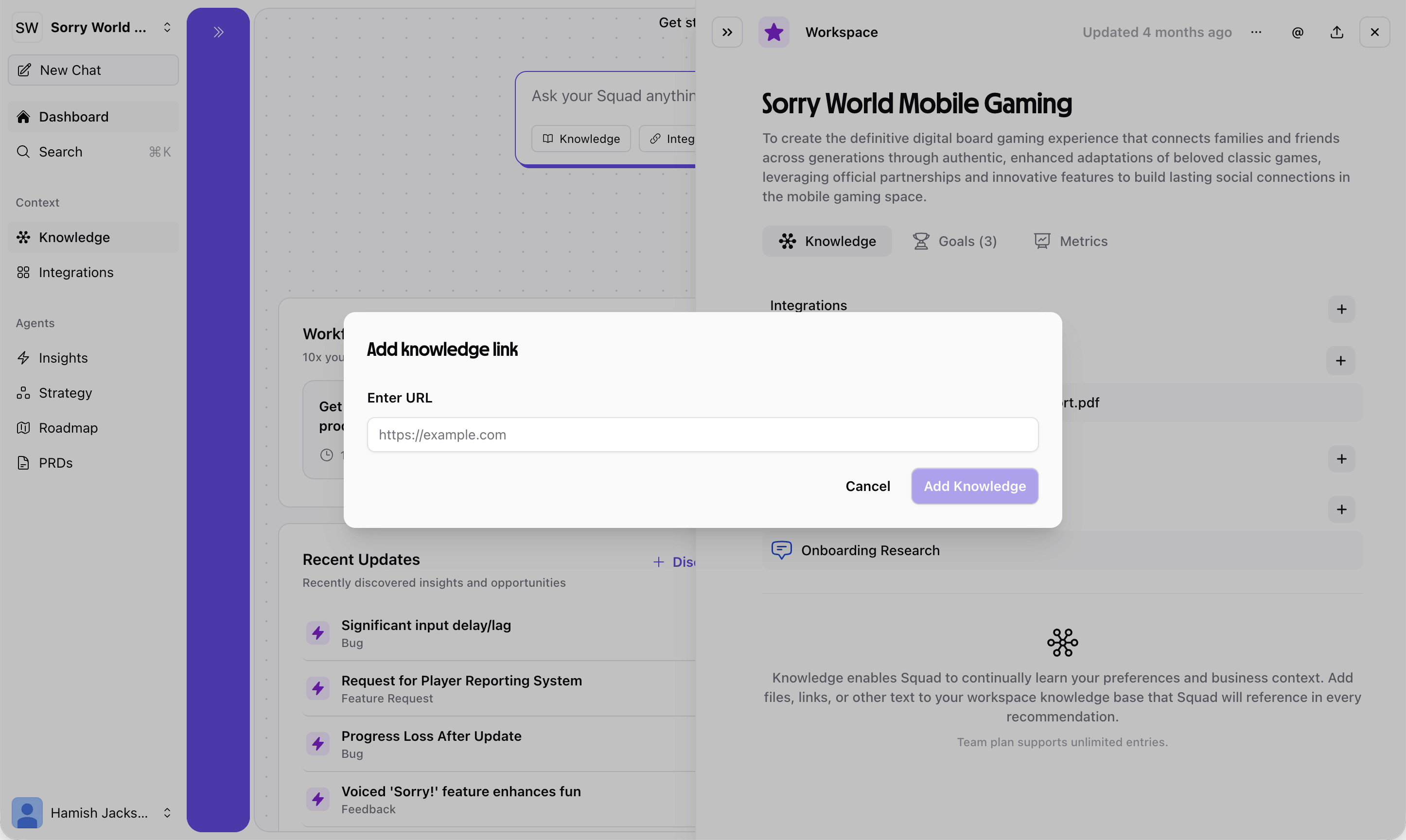
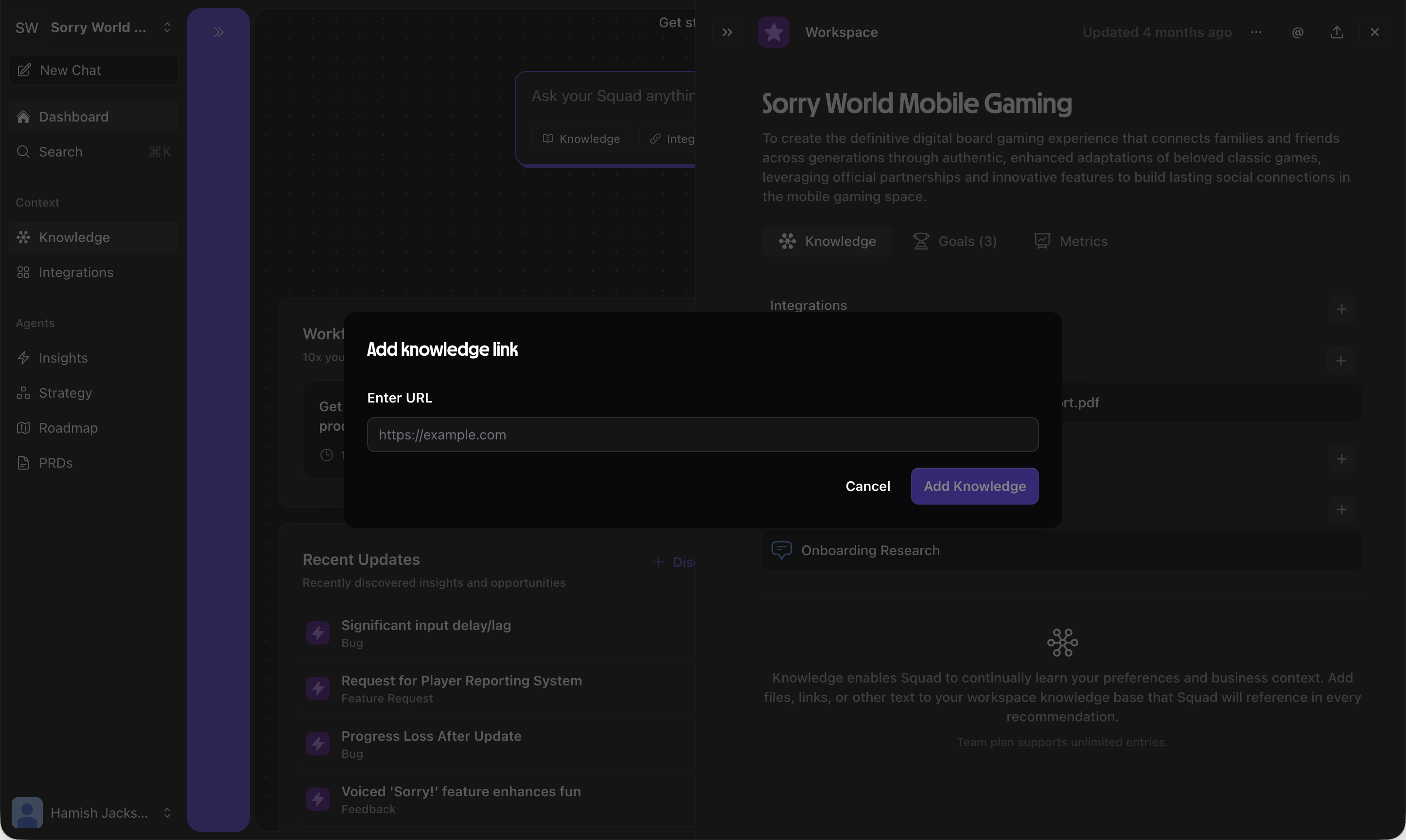
Paste URLs into the **Links** tab to have Squad reference web content. This is useful for competitor analysis, market research articles, or your own website content.
Track key metrics associated with your goals. Add measurable targets and monitor progress over time.
## Adding knowledge
### From integrations
Connect tools like [Notion](/integrations/notion), app stores, or analytics platforms to automatically sync relevant data into your knowledge base. Navigate to **Integrations** in the sidebar to set up connections.
### Uploading files
Click the **Files** tab in the Knowledge panel and upload documents directly. Supported formats include PDFs, documents, and spreadsheets. Squad will extract and index the content for use in AI responses.
### Adding links
Paste URLs into the **Links** tab to have Squad reference web content. This is useful for competitor analysis, market research articles, or your own website content.
 ### Adding text
Use the **Text** tab to add free-form context like:
* Product descriptions and positioning
* Target audience definitions
* Business model details
* Competitive advantages
* Internal notes and decisions
Start with the most important context — your product description, target audience, and key differentiators. This gives Squad the foundation it needs to provide relevant recommendations.
## How knowledge feeds into Squad
Knowledge is used across every Squad feature:
Squad references your knowledge when answering questions, ensuring responses are tailored to your specific product and business
Knowledge provides context for interpreting feedback and analytics data, leading to more relevant insight discovery
Your goals and business context help Squad generate better opportunities and solutions that align with your mission
Knowledge about your team, resources, and priorities helps Squad make better prioritization recommendations
## Best practices
Update knowledge as your product evolves — outdated context leads to outdated recommendations
Detailed product descriptions and clear goals give Squad better context than vague summaries
Integration data is automatically kept in sync, reducing manual effort
Focus on relevant, high-quality context rather than dumping everything in
## Related features
Ask questions using your knowledge context
Connect tools to auto-sync knowledge
See how knowledge informs your strategy
### Adding text
Use the **Text** tab to add free-form context like:
* Product descriptions and positioning
* Target audience definitions
* Business model details
* Competitive advantages
* Internal notes and decisions
Start with the most important context — your product description, target audience, and key differentiators. This gives Squad the foundation it needs to provide relevant recommendations.
## How knowledge feeds into Squad
Knowledge is used across every Squad feature:
Squad references your knowledge when answering questions, ensuring responses are tailored to your specific product and business
Knowledge provides context for interpreting feedback and analytics data, leading to more relevant insight discovery
Your goals and business context help Squad generate better opportunities and solutions that align with your mission
Knowledge about your team, resources, and priorities helps Squad make better prioritization recommendations
## Best practices
Update knowledge as your product evolves — outdated context leads to outdated recommendations
Detailed product descriptions and clear goals give Squad better context than vague summaries
Integration data is automatically kept in sync, reducing manual effort
Focus on relevant, high-quality context rather than dumping everything in
## Related features
Ask questions using your knowledge context
Connect tools to auto-sync knowledge
See how knowledge informs your strategy