> ## Documentation Index
> Fetch the complete documentation index at: https://v1.docs.meetsquad.ai/llms.txt
> Use this file to discover all available pages before exploring further.
# Dashboard
> Your home base for navigating Squad and getting started quickly
## Overview
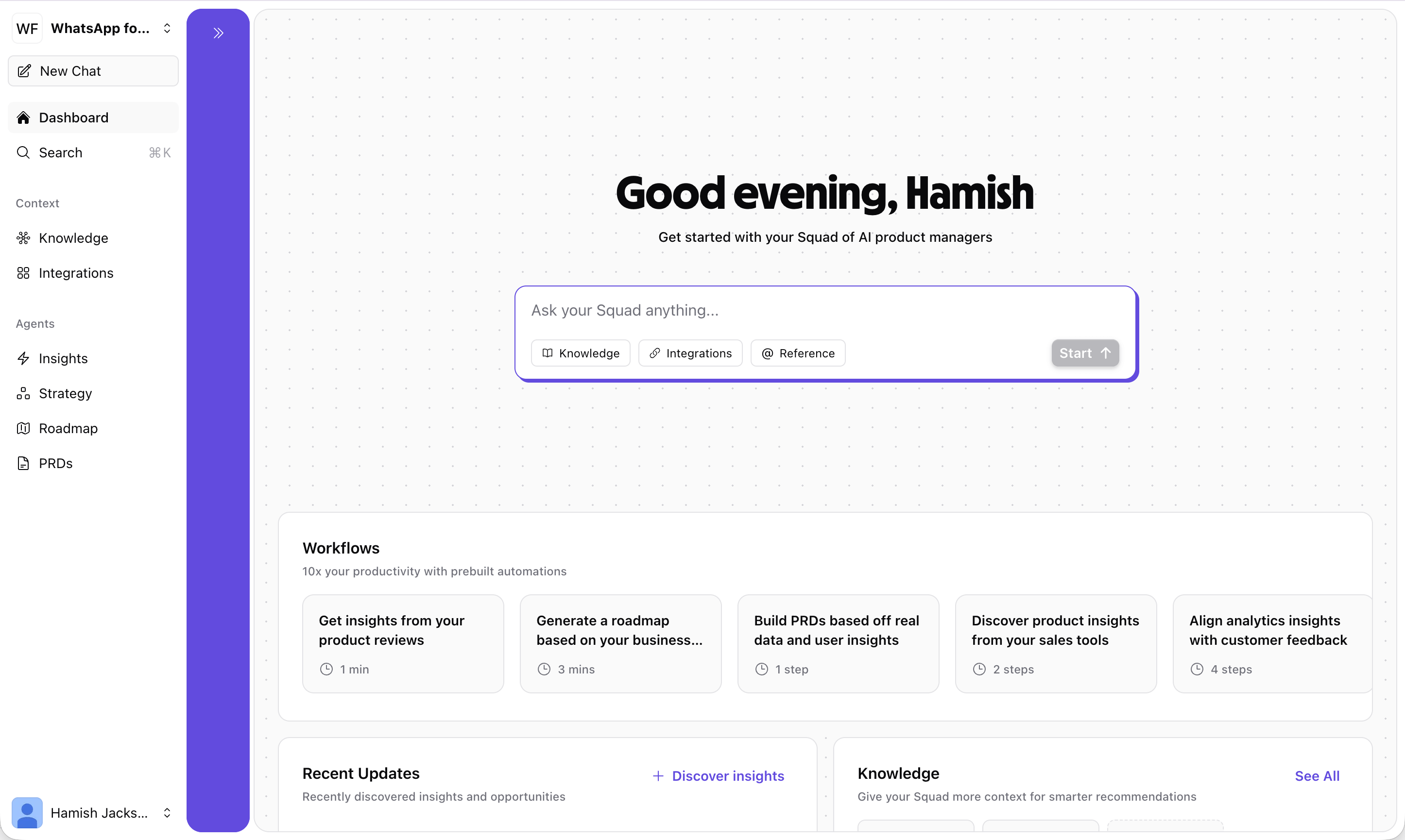
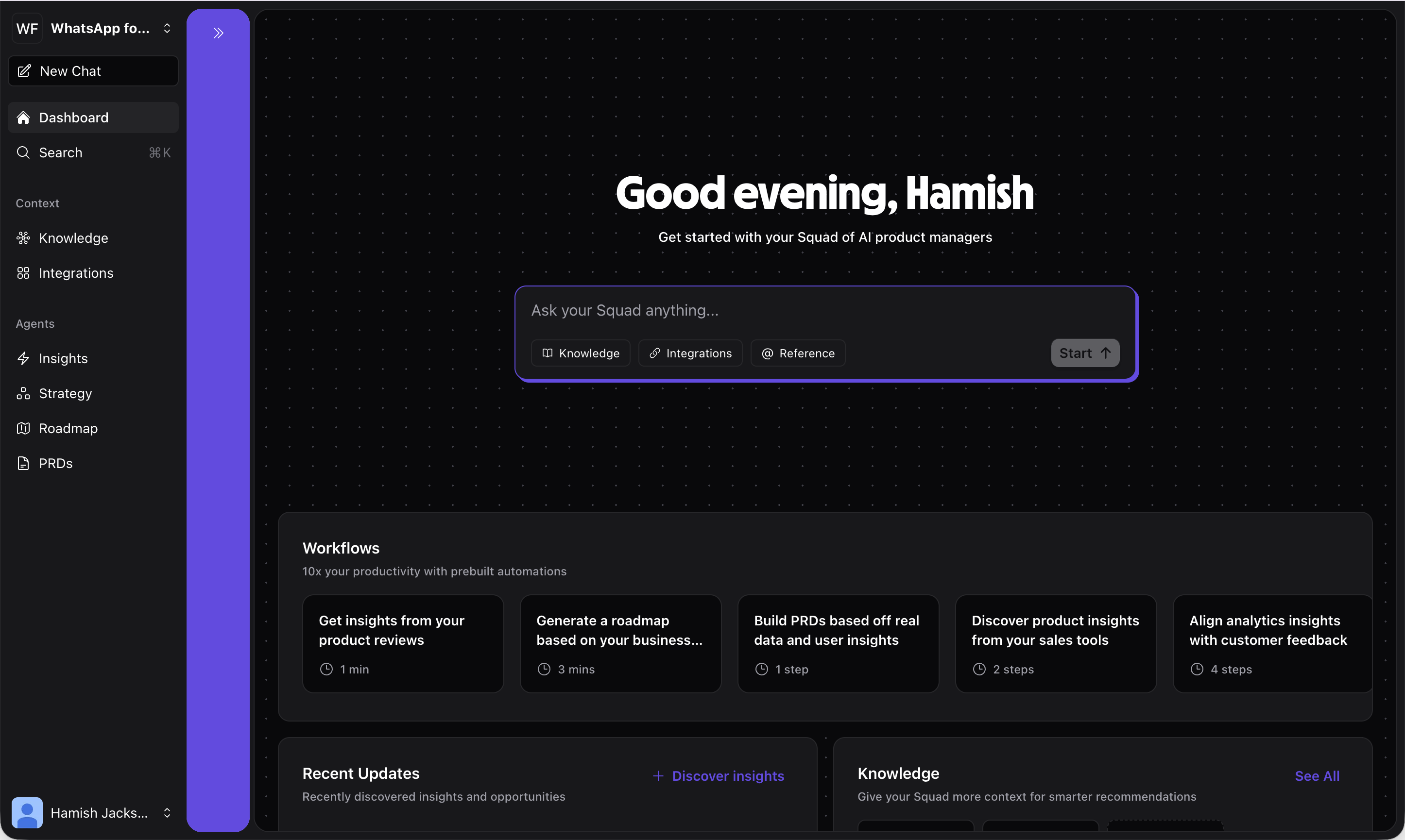 The Dashboard is the first thing you see when you log into Squad. It provides a personalized overview of your workspace with quick access to chat, pre-built workflows, your knowledge base, and integrations.
## Dashboard sections
### Chat input
At the top of the Dashboard, you'll find a chat input with the prompt **"Ask your Squad anything..."**. This gives you instant access to your AI product agent without navigating to the Chat page.
The input includes quick-access buttons for:
* **Knowledge** — Browse and manage your workspace knowledge
* **Integrations** — Connect new data sources
* **@ Reference** — Reference specific goals, opportunities, or knowledge items
### Workflows
The Workflows section helps you **10x your productivity with pre-built automations**. Each workflow card shows the estimated time or number of steps to complete:
Automatically analyze app store and review site feedback (\~1 min)
Build a complete roadmap from your goals and data (\~3 mins)
Create detailed product requirement documents (1 step)
Surface opportunities from sales and support data (2 steps)
Click any workflow card to start a guided process that walks you through each step.
### Knowledge
The Knowledge section shows your connected knowledge items — text documents, uploaded files, links, and integration data that Squad uses to provide context-aware responses. From here you can quickly see what context Squad has access to and navigate to the full [Knowledge](/features/knowledge) panel to add more.
### Integrations
The Integrations section provides quick-connect cards for popular integrations like Notion, App Store, Play Store, and Google Reviews. Click **"Connect"** on any card to set up the integration and start feeding data into Squad.
The more knowledge and integrations you connect, the better Squad's recommendations will be. Start with your most important data source and add more over time.
## Related features
Continue conversations with your AI product agent
Manage your workspace knowledge and context
Dive deeper into analytics and user feedback
The Dashboard is the first thing you see when you log into Squad. It provides a personalized overview of your workspace with quick access to chat, pre-built workflows, your knowledge base, and integrations.
## Dashboard sections
### Chat input
At the top of the Dashboard, you'll find a chat input with the prompt **"Ask your Squad anything..."**. This gives you instant access to your AI product agent without navigating to the Chat page.
The input includes quick-access buttons for:
* **Knowledge** — Browse and manage your workspace knowledge
* **Integrations** — Connect new data sources
* **@ Reference** — Reference specific goals, opportunities, or knowledge items
### Workflows
The Workflows section helps you **10x your productivity with pre-built automations**. Each workflow card shows the estimated time or number of steps to complete:
Automatically analyze app store and review site feedback (\~1 min)
Build a complete roadmap from your goals and data (\~3 mins)
Create detailed product requirement documents (1 step)
Surface opportunities from sales and support data (2 steps)
Click any workflow card to start a guided process that walks you through each step.
### Knowledge
The Knowledge section shows your connected knowledge items — text documents, uploaded files, links, and integration data that Squad uses to provide context-aware responses. From here you can quickly see what context Squad has access to and navigate to the full [Knowledge](/features/knowledge) panel to add more.
### Integrations
The Integrations section provides quick-connect cards for popular integrations like Notion, App Store, Play Store, and Google Reviews. Click **"Connect"** on any card to set up the integration and start feeding data into Squad.
The more knowledge and integrations you connect, the better Squad's recommendations will be. Start with your most important data source and add more over time.
## Related features
Continue conversations with your AI product agent
Manage your workspace knowledge and context
Dive deeper into analytics and user feedback